

Close Menu
  • Home
  • News
  • Leaks
  • Reviews
    • Phone Reviews
    • Tablet Reviews
    • Accessory Review
  • Android
  • Apple
  • Windows
  • Wallpapers
  • Contact
    • Tip Us
    • Press release or product review
What's Hot

iPhone 18 Pro Camera Bump Could Get Bigger

June 18, 2026

Can We Go Back to Real Smartphone Upgrades?

June 18, 2026

Google’s Next-Gen Smart Speaker Lands on June 25 for $99

June 17, 2026
Facebook X (Twitter)
FWNEDFWNED
  • Home
  • News
  • Leaks
  • Reviews
    • Phone Reviews
    • Tablet Reviews
    • Accessory Review
  • Android
  • Apple
  • Windows
  • Wallpapers
  • Contact
    • Tip Us
    • Press release or product review
FWNEDFWNED
Home » Google Chrome: How to disable merged tabs and apps on Android Lollipop
Android

Google Chrome: How to disable merged tabs and apps on Android Lollipop

Matt KinneBy Matt KinneFebruary 17, 20153 Comments2 Mins Read
Facebook Twitter Pinterest LinkedIn Tumblr Email
Share
Facebook Twitter LinkedIn Pinterest Email

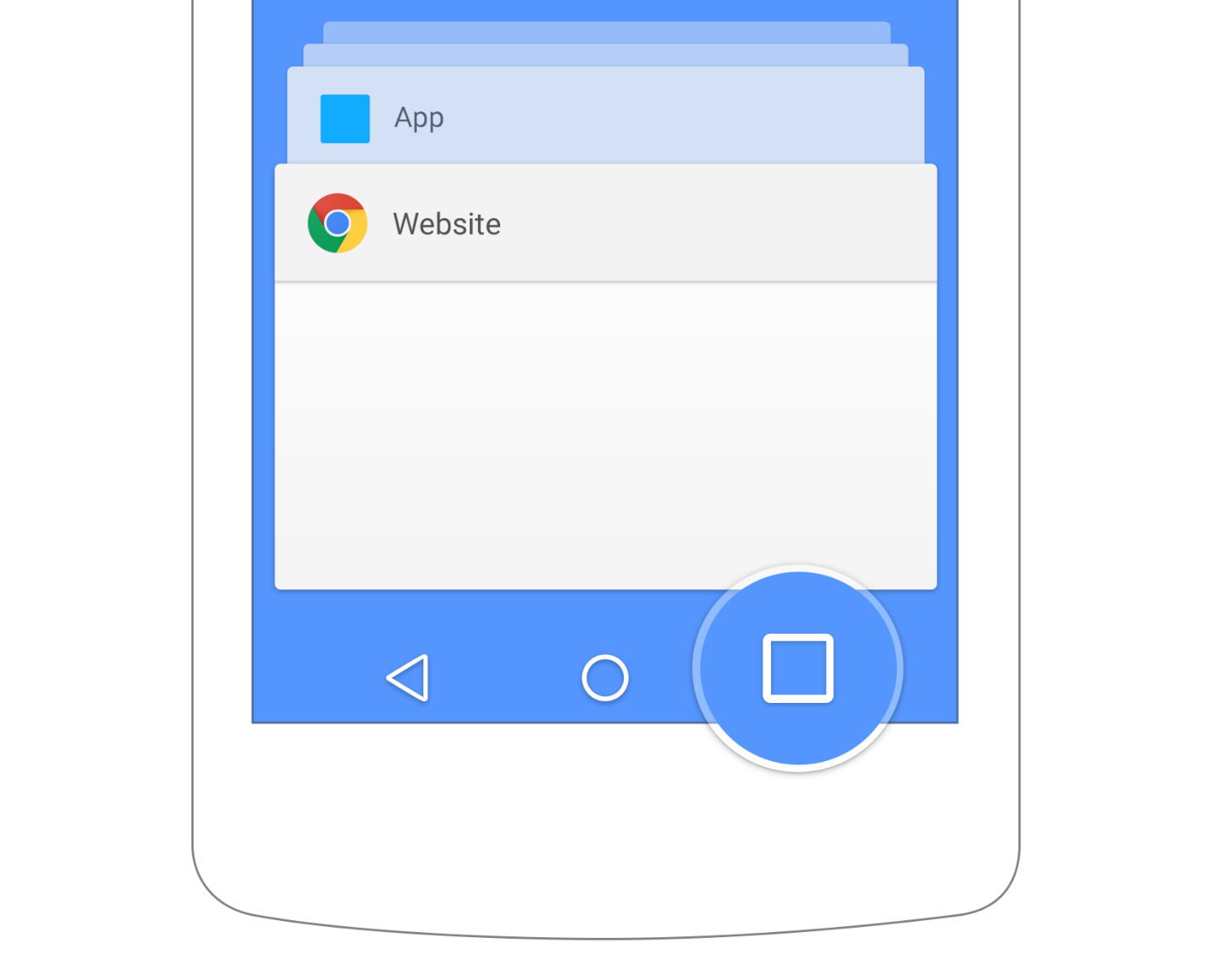
One of the newest features to ship with Android Lollipop, whether hated or liked, is the merged tabs view of the Google Chrome web browser. When merged tabs are enabled, every tab open in Google Chrome is essentially its own app. You can close one tab at a time, by swiping it away in your recent app menu.

This seems like a good idea at first, but over time the recent apps tab gets filled with old Google Chrome tabs that went un-closed. In addition to that, switching tabs isn’t as easy as swiping the address bar right or left. Tab switching is done by pressing the recent app button, then sifting through old tabs and apps.

This tutorial will show you how to disable the merged tabs and apps feature on Android Lollipop.
Google Chrome 5


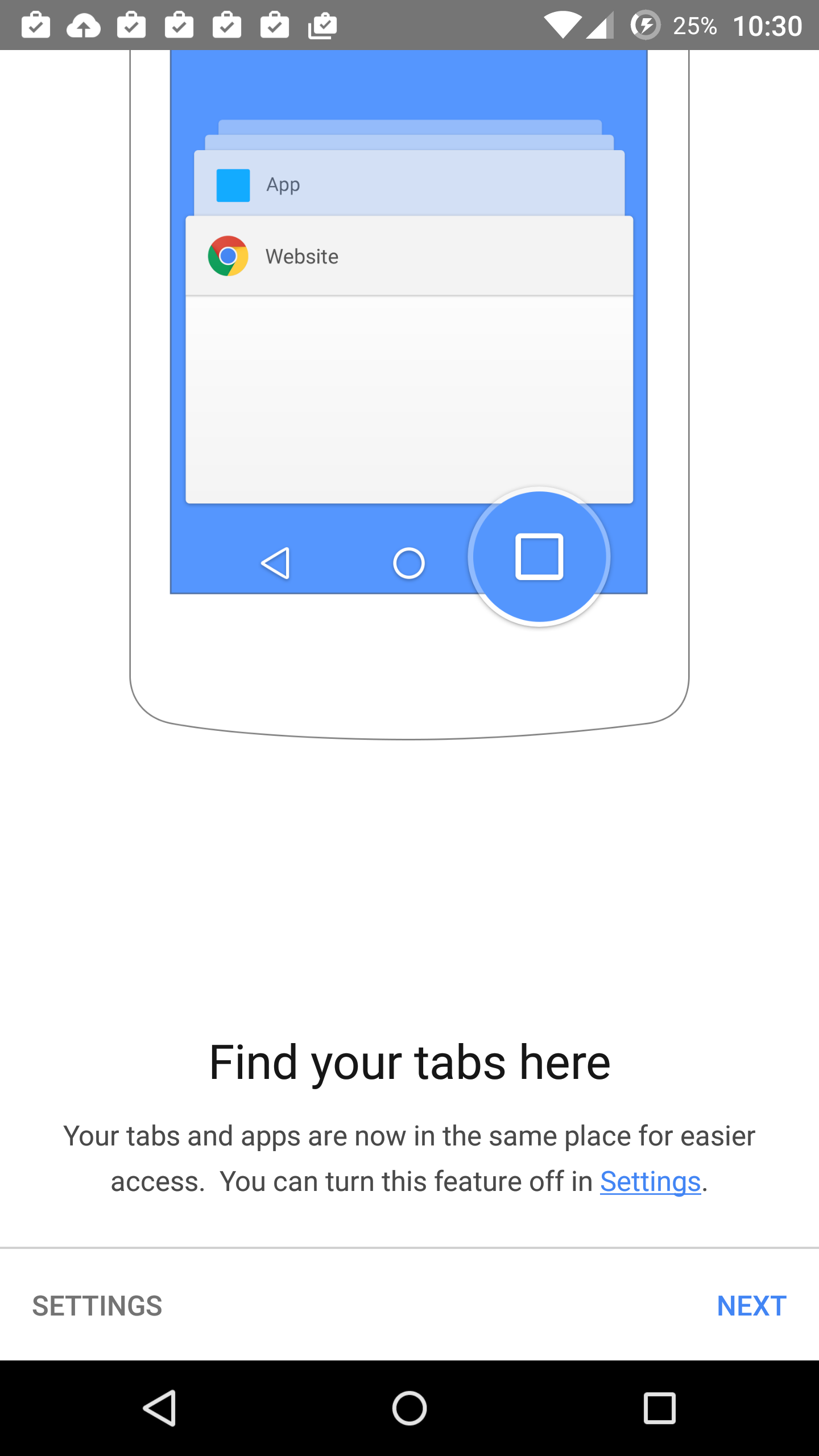
On Google Chrome’s first start-up, you will see the screen above. If you are opening Chrome for the first time, all you have to do is go to settings on this screen. Once settings is pressed, it will take you directly to the toggle to disable the merged tabs view.
Google Chrome 3


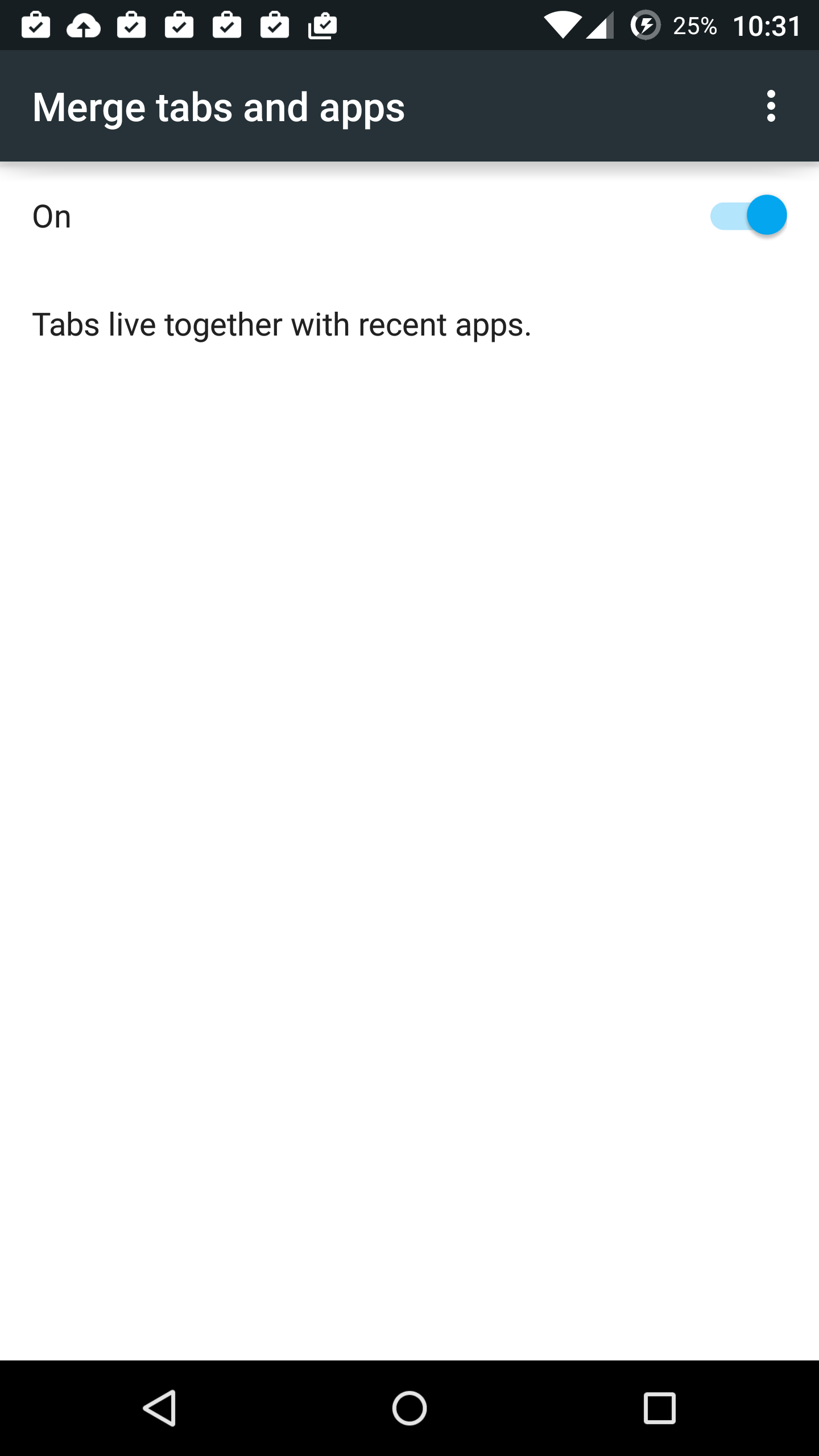
Once you un-toggle the “tabs live together with recent apps” option, your Google Chrome browser will go back to normal. That means you will be able to see all open tabs within one browser window.
Google Chrome 8

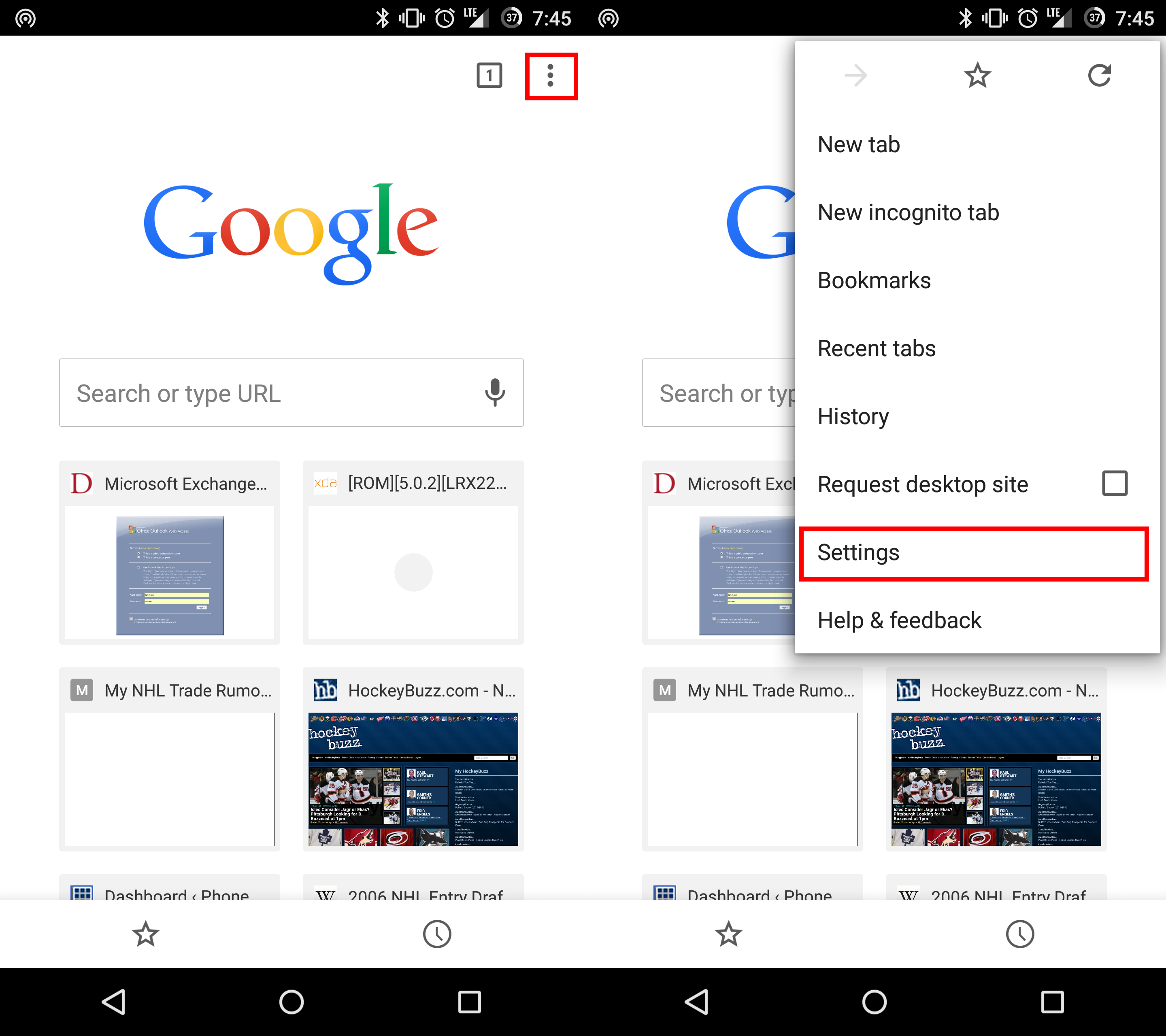
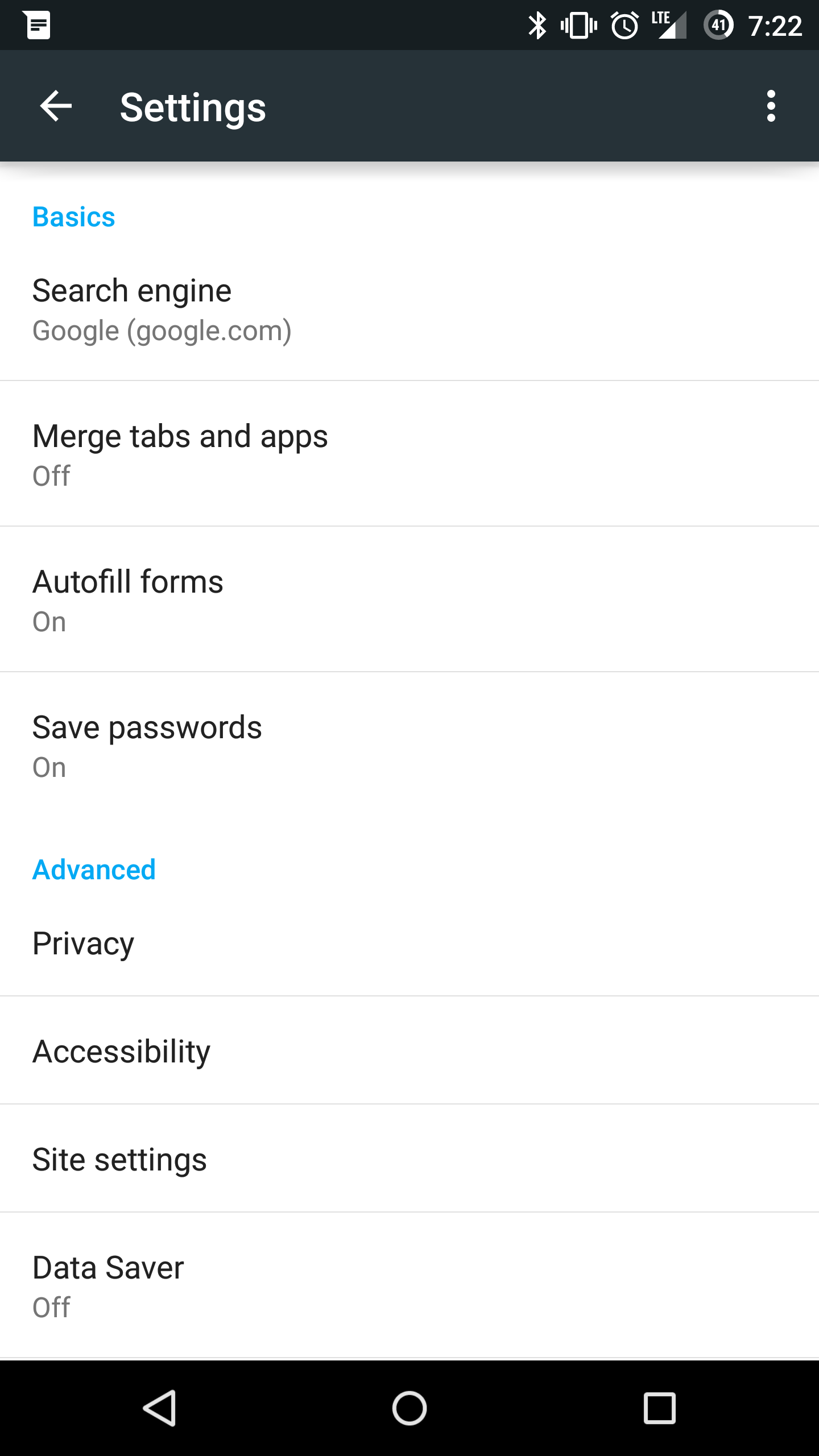
Now, if you have had Google Chrome with this option enabled from the start, it is pretty simple to disable. Find your way to the Google Chrome browser settings in the top right corner.
Google Chrome 1


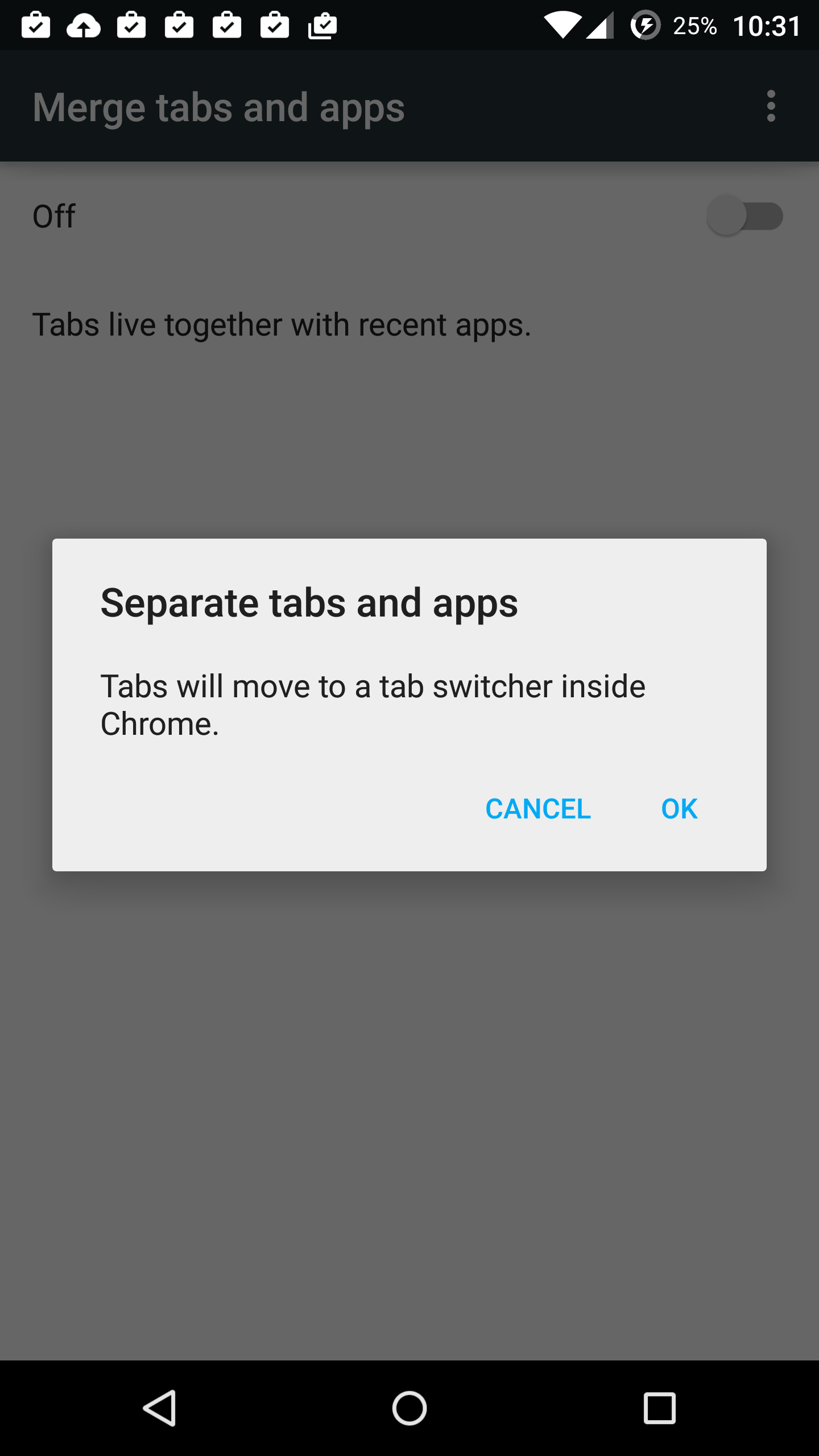
Once you are in settings, there will be an option where it says ” Merge tabs and apps.” This is what you want to click on. It will bring you to the image above, then you just need to disable the option. You will get a prompt like the one seen below.
Google Chrome 2


There you have it! Now you can disable the merged Google Chrome tabs and recent applications on Android Lollipop. If these tips helped you out, be sure to share it and follow us on Twitter and Facebook!

Google Chrome Merged Tabs and Apps Tips
Share. Facebook Twitter Pinterest LinkedIn Tumblr Email
Matt Kinne

I golf, autocross, and spend way too much time messing with new phones and gadgets. FWNED is where I share smartphone news, leaks, reviews, and whatever else catches my attention in the tech world.

Related Posts

Galaxy Z Fold 8 (Wide) Could Bring Samsung’s Biggest Crease Improvement Yet

June 15, 2026

Google Needs to Revert This Android 17 Always-On Display Change

June 15, 2026

Samsung’s Next Foldables and Galaxy Watch 9 Appear in FCC Filings Ahead of Launch

June 15, 2026

Nothing’s Massive U.S. Retail Win: Why the Best Buy Deal Changes Everything

June 12, 2026
Editors Picks

Can We Go Back to Real Smartphone Upgrades?

June 18, 2026

18Birdies Pro Swing Analysis Review: Is a $15 Virtual Lesson Worth It?

June 9, 2026

FWNED Is Back!

June 8, 2026

Why I’m Paying for 18Birdies Premium Even Though It Leaves Android Users Behind

June 1, 2026
Related Posts

Galaxy Z Fold 8 (Wide) Could Bring Samsung’s Biggest Crease Improvement Yet

By Matt Kinne

Google Needs to Revert This Android 17 Always-On Display Change

By Matt Kinne

Samsung’s Next Foldables and Galaxy Watch 9 Appear in FCC Filings Ahead of Launch

By Matt Kinne
Advertisement
FWNED
Facebook X (Twitter)
  • Write For Us
  • About Us
  • Contact
  • Sitemap
  • Privacy Policy
© 2026 FWNED

Type above and press Enter to search. Press Esc to cancel.