
Close Menu
  • Home
  • News
  • Leaks
  • Reviews
    • Phone Reviews
    • Tablet Reviews
    • Accessory Review
  • Android
  • Apple
  • Windows
  • Wallpapers
  • Contact
    • Tip Us
    • Press release or product review
What's Hot

The Galaxy Watch Ultra convinced me Google needs a Pixel Watch Ultra

June 11, 2026

Instagram Finally Lets Users Reorder Their Grid, Here’s How!

June 11, 2026

Galaxy Watch Ultra 2 Leak Points to 35% Larger Battery and 3-Day Battery Life

June 10, 2026
Facebook X (Twitter)
FWNEDFWNED
  • Home
  • News
  • Leaks
  • Reviews
    • Phone Reviews
    • Tablet Reviews
    • Accessory Review
  • Android
  • Apple
  • Windows
  • Wallpapers
  • Contact
    • Tip Us
    • Press release or product review
FWNEDFWNED
Home » How to disable Chrome Custom Tabs on Android [tutorial]
Tips

How to disable Chrome Custom Tabs on Android [tutorial]

Matt KinneBy Matt KinneNovember 17, 2017No Comments2 Mins Read
Facebook Twitter Pinterest LinkedIn Tumblr Email
Share
Facebook Twitter LinkedIn Pinterest Email

One thing Google has been pushing is Chrome Custom Tabs. It is a way for apps to utilize Chrome’s browsing experience, but allows the app to control more of the environment. Although transitioning from an app to a Chrome Custom Tab is seamless, it limits what you are able to do within the browser window. If you are like me, then you are not a fan of it. This is how to disable Chrome Custom Tabs in all apps, the Google Feed, and the Google App.

Disable Chrome Custom Tabs in all apps

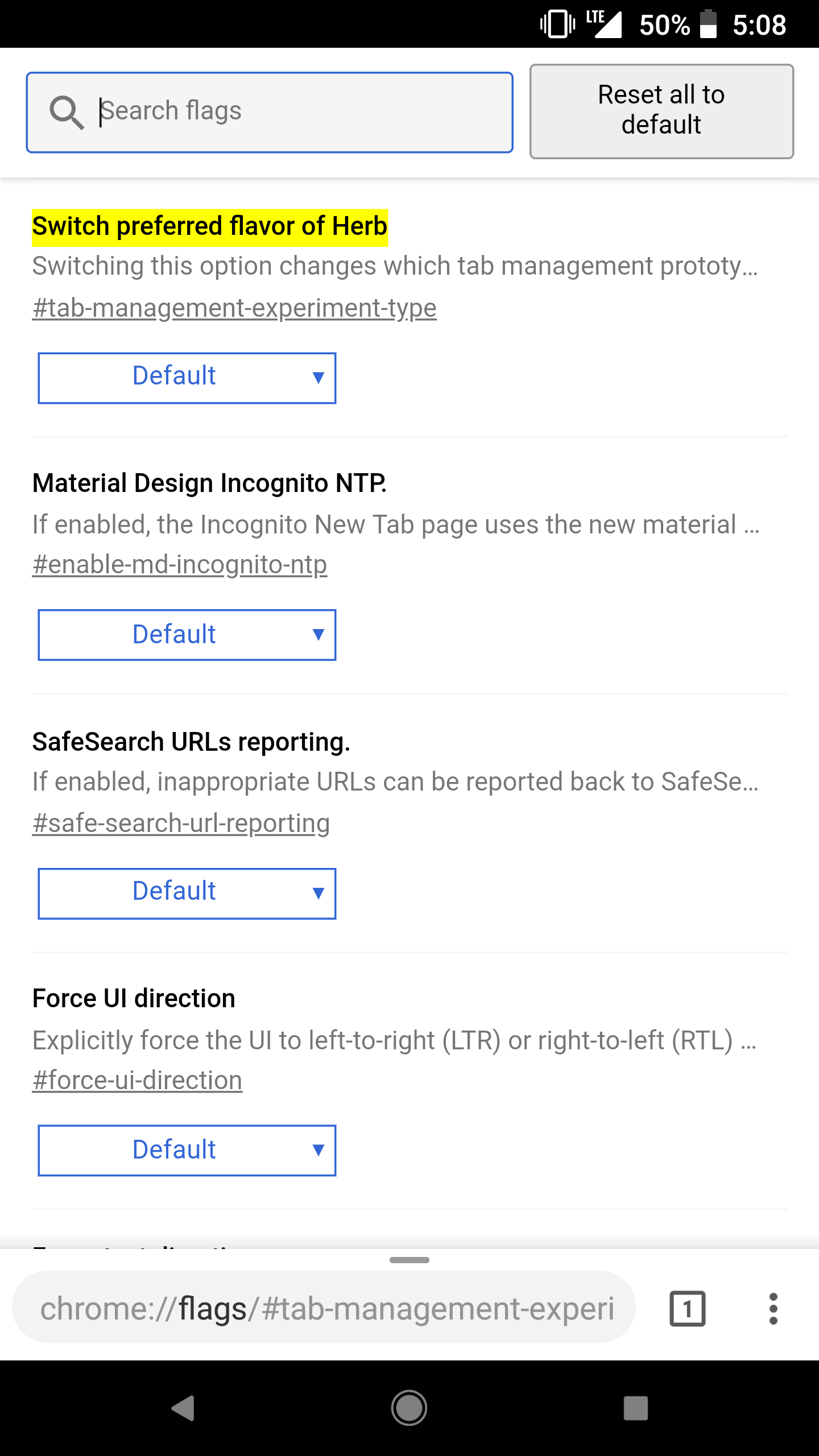
Disable Chrome Custom Tabs Flags Example
Disable Chrome Custom Tabs Flags 1
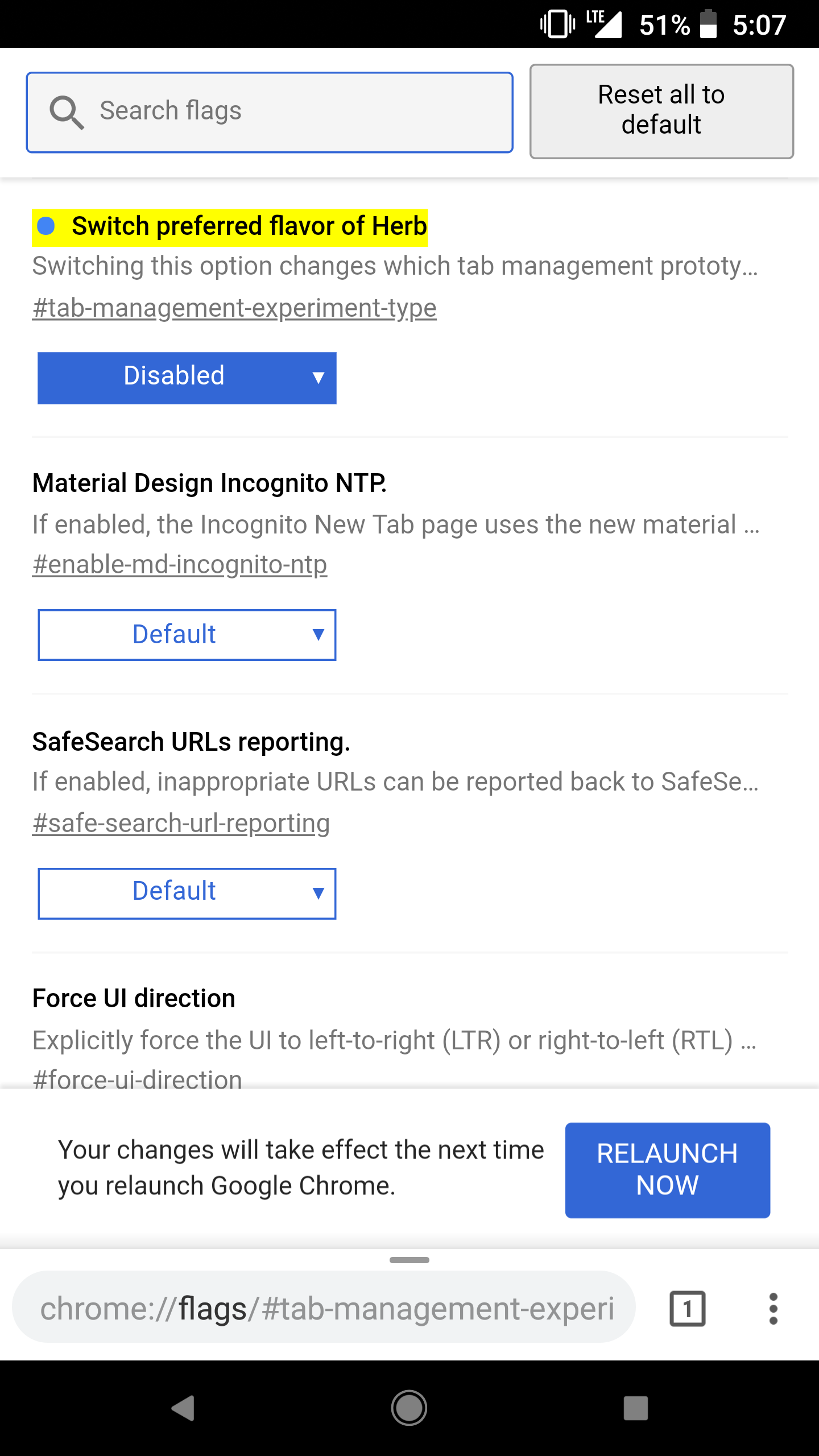
Disable Chrome Custom Tabs Flags 2

In order to disable Chrome Custom Tabs throughout all apps, aside from the Google Feed, you need to open your Chrome web browser. Once Chrome is open, put in chrome://flags/#tab-management-experiment-type as the URL and hit enter. This not only opens Chrome’s hidden menu, but takes you right to the flag you need to disable. Once you disable it, you will need to re-open your web browser. Now, apps will always default to the web browsing experience.

Disable Chrome Custom Tabs in the Google Feed and Google App
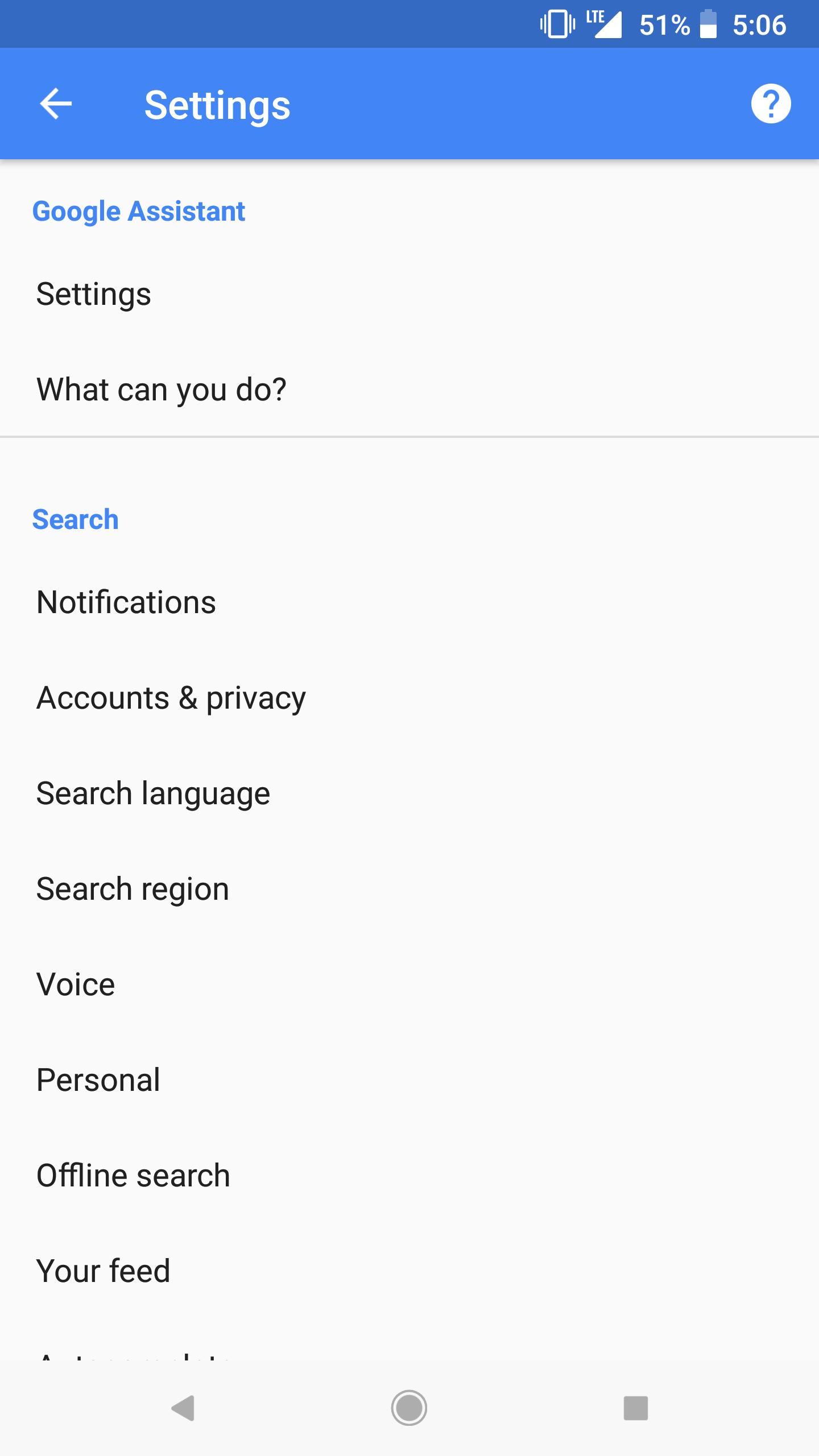
Disable Chrome Custom Tabs Google App 1
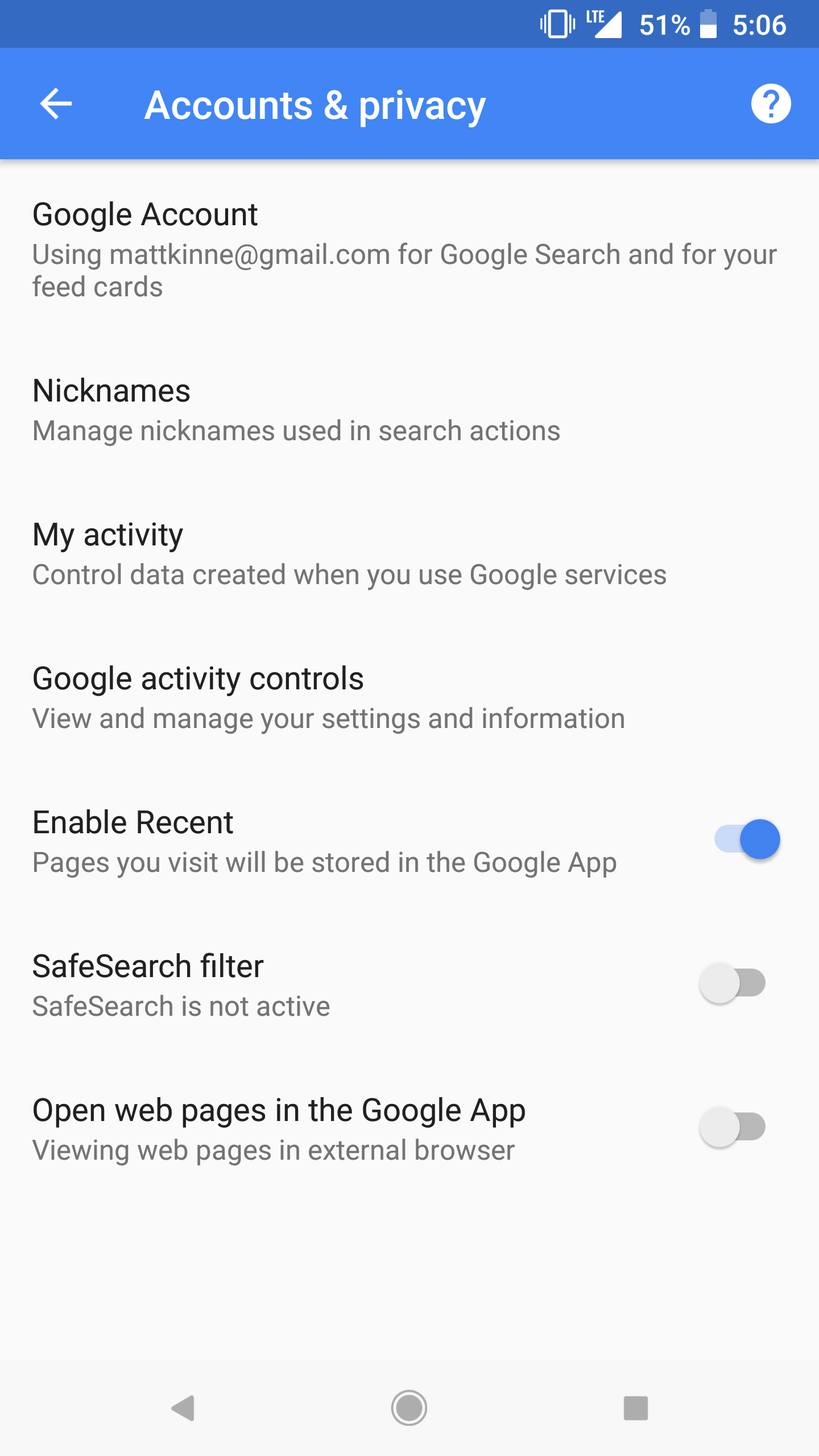
Disable Chrome Custom Tabs Google App 2
Disable Chrome Custom Tabs Google App 3

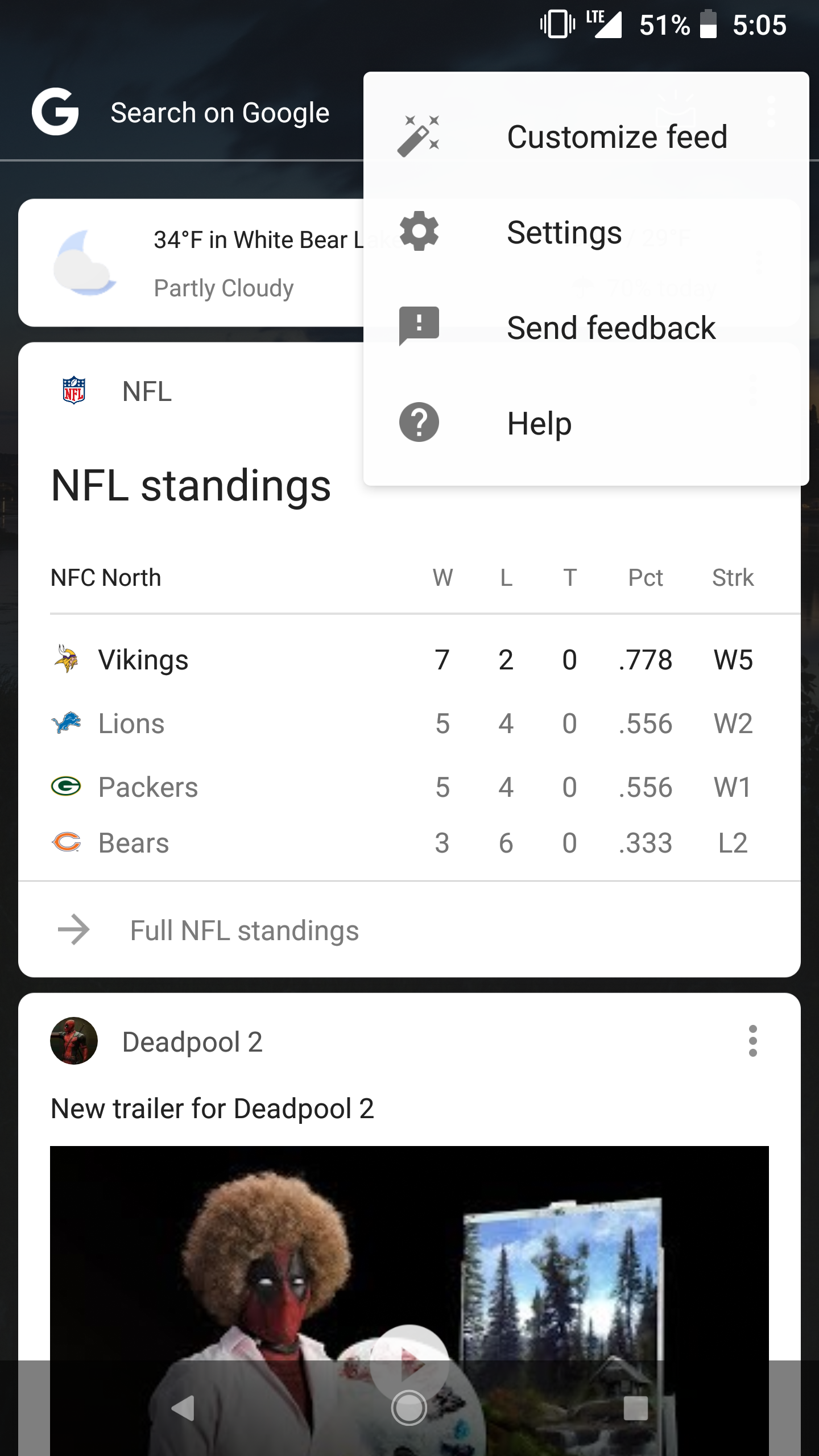
In order to disable Chrome Custom Tabs in the Google Feed, there are slightly different steps. It has to be disabled directly within the Google App. To do so, open the settings from within the Google Feed. In the main menu for the Google Feed, open Accounts and Privacy. Disable Open web pages in the Google App. Now all links opened from within the Google App will open within your default web browser.

That is all it takes. Now whenever you open a link from within an app, the Google Feed, or the Google App, it will always open in the full web browsing experience.

Chrome Chrome Custom Tabs Disable Chrome Custom Tabs Google Chrome
Share. Facebook Twitter Pinterest LinkedIn Tumblr Email
Matt Kinne

I golf, autocross, and spend way too much time messing with new phones and gadgets. FWNED is where I share smartphone news, leaks, reviews, and whatever else catches my attention in the tech world.

Related Posts

How to enable the status bar battery percentage in iOS 16

August 8, 2022

How to enable the notification light on the Pixel 2 and 2 XL

December 25, 2017

How to disable Google Play Protect

August 13, 2017

How to root Android O Developer Preview on Pixel devices

June 10, 2017
Editors Picks

18Birdies Pro Swing Analysis Review: Is a $15 Virtual Lesson Worth It?

June 9, 2026

FWNED Is Back!

June 8, 2026

Why I’m Paying for 18Birdies Premium Even Though It Leaves Android Users Behind

June 1, 2026
Related Posts

How to enable the status bar battery percentage in iOS 16

By Matt Kinne

How to enable the notification light on the Pixel 2 and 2 XL

By Matt Kinne

How to disable Google Play Protect

By Matt Kinne
Advertisement
FWNED
Facebook X (Twitter)
  • Write For Us
  • About Us
  • Contact
  • Sitemap
  • Privacy Policy
© 2026 FWNED

Type above and press Enter to search. Press Esc to cancel.