


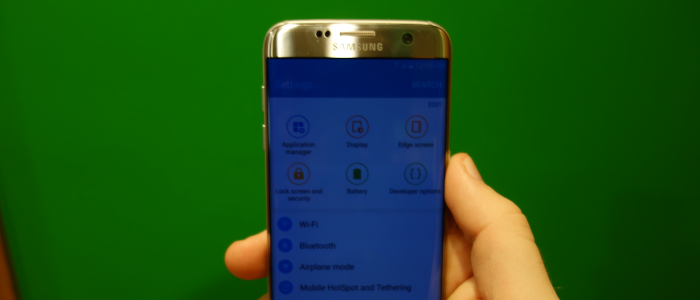
One issue that I’ve come across on many Android phones I’ve owned is that for some reason, manufacturers tend to employ a ridiculous DPI’s. For instance, the latest culprit was my brand new Samsung Galaxy S7 edge. The device comes with a 5.5 inch display, but everything shows up very large. It makes me feel like I have my phone set on easy mode.
DPI really comes into play when comparing FHD (1920 x 1080) and QHD (2560 x 1440) displays. Obviously the QHD display has a higher resolution and PPI (pixels per inch), but you still want things readable. For example, both the OnePlus One and the Galaxy S7 edge both have a 5.5 inch display, but the former has a DPI of 480 and FHD resolution whereas the latter has a DPI of 640 and QHD resolution.
One of the more popular ways to change the DPI on your Android device is to root it and use applications to modify it. However, root isn’t available for all phones and some users would like to avoid using root. The method I will go through uses Minimal ADB and Faceboot and a few commands in the command line. It is very easy and I will provide the necessary commands. It will change your DPI without root.
Just a disclaimer, DPI sometimes distorts pre-installed apps such as the dialer, camera, etc., they can even force close. Don’t change your DPI too drastically, it can also have negative effects.
Step 1: Download Minimal ADB and Fastboot
Download Minimal ADB and Fastboot
The first step is to install Minimal ADB and Faceboot. You can find the program over at XDA and it cuts out needing the entire Android SDK platform, which is really a time saver and makes things a lot easier. Once it is downloaded, just follow the prompts to complete the installation. It shouldn’t take more than a minute or two, then you will be on to the next step.
Step 2: Enable USB debugging
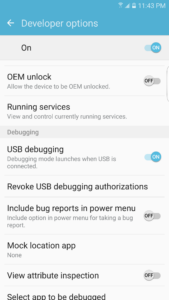
Now that you have Minimal ADB and Fastboot installed on your computer, we now turn to the device itself. If you haven;t already enable Developer Options on your device. To do so, go to Settings, About device, then tap Build number 7 times. This will enable Developer options.
Step 3: Allow USB debugging
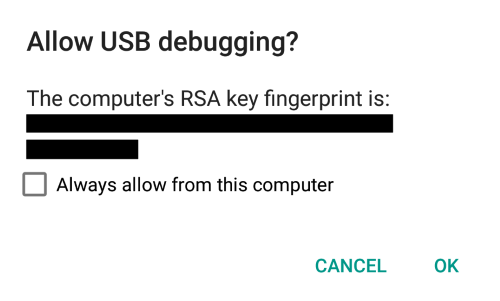
The next step in-line is to plug the device into the computer. The device’s drivers should install automatically. Keep your phone unlocked and keep an eye out for the “Allow USB debugging” prompt. Once you enable it, this ensures that your device trusts your computer so it will allow you to execute the commands.
Step 4: Run the commands

When your device is plugged in, to make sure they are communicating with each other, run the following command: adb devices. You should see a device ID and device. If it says “unauthorized” where the above image says “device”, you didn’t enable USB debugging. Unplug the device and plug it back in.

The next command is one I use to be on the safe side. Running adb shell getprop ro.sf.lcd_density will tell you the device’s current DPI. You can always Google it to find the DPI of your current device, but I feel it is safer to get the DPI straight from your device.

Once you know your current DPI on your device, let’s change it. A good rule of thumb for me is only going down about 40 DPI. It is a conservative starting point and you can always go a little lower. The command to change the DPI is: adb shell wm density [insert DPI here] && adb reboot. The end command will automatically reboot your device, which is necessary to make the DPI change.
DPI changed, you’re done!
Now you know how to change the DPI on any Android phone you want. Let us know what device you’re using and the DPI of your choice. Currently on my Galaxy S7 edge I am using a DPI of 600, as you can tell from the screen shots above.
